- 1. Slack
- 2. Gitlab
- 3. Github
- 4. Bitbucket
To use workSonar, you need to integrate it with Slack. We have created a Bot to make it easier to collect activity data from the users you select.
Simply go to the /integrations tab, navigate to the  Slack subsection, and if you see that the status is negative , click the button to be automatically redirected to Slack.com website to enable the integration.
Do not worry, your data is stored securely, and you will see the list of data being shared before you give your permission.
 Image: slack Integration button
Next, you will be redirected to www.slack.com to confirm and select the Slack Workspace you want to integrate with our software.
During the confirmation, you will be informed about the permissions being granted, and after confirming, you will be taken to the workSonar.io Dashboard.
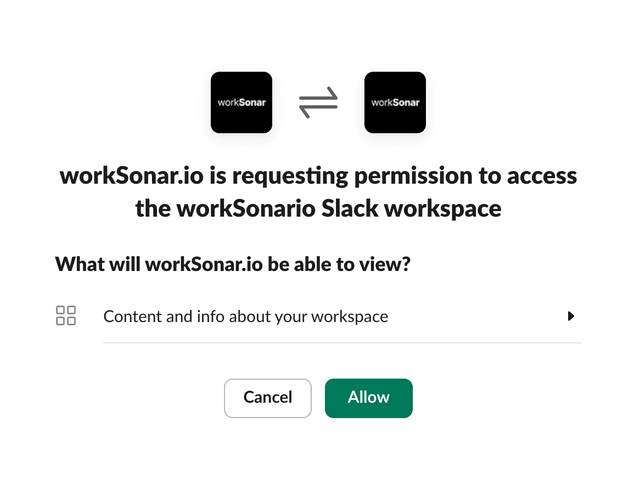 Image: slack Integration on slack.com website
After returning to the /integrations tab, navigate to the Slack subsection, and if you see that the status is positive
To select the Slack user you want to monitor, simply click the Add user button in the /integrations tab after a successful integration.
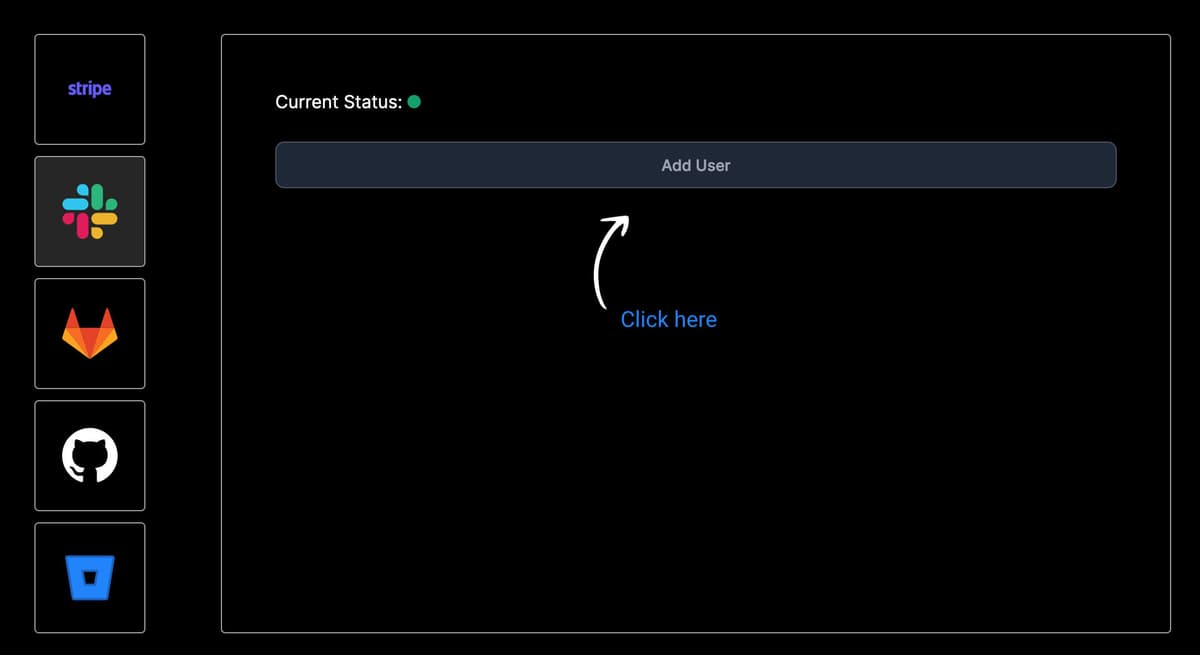 Image: Add Slack User Button
In the modal that appears, enter the Member ID, which you can find by selecting the user's profile in the Slack app.
This ID is available in the profile link or through the Copy member ID menu.
These are random characters assigned by Slack to identify users within a Workspace.
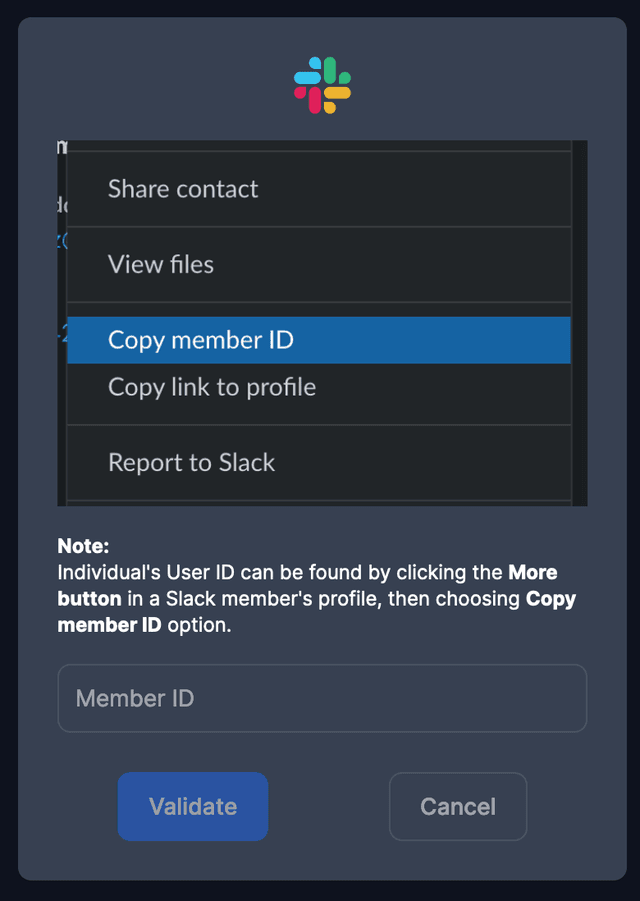 Image: Add Slack User Modal member id input
After entering the correct Member ID, we will validate its accuracy and check if you can add more users for monitoring based on your subscription.
Additionally, we will verify and confirm that the user is the one you expected.
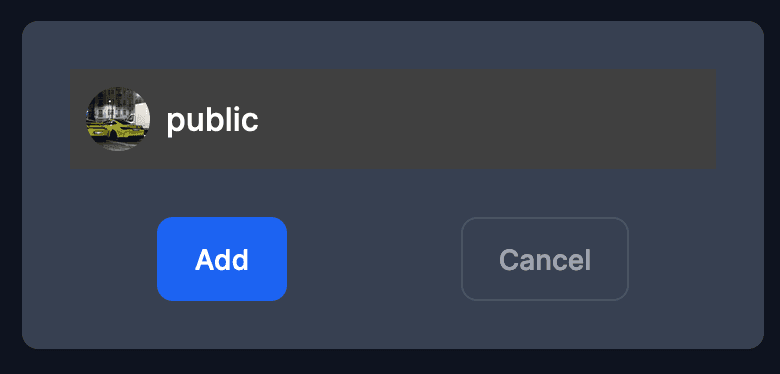 Image: Add Slack User Validation
After navigating to the /dashboard, you should now see the added user on the timeline along with their future activity and availability.
From now on, you can also add integrations for other workSonar functionalities for the user and monitor not only their availability but also events from other integrations.
To remove a user and stop monitoring their activity, simply go to the /dashboard and press the red delete button on the list next to your selected user.
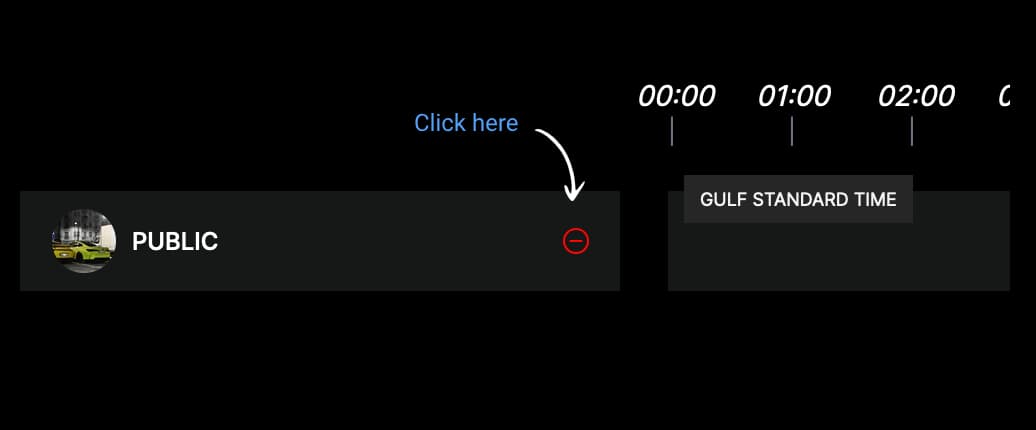 Image: Remove Slack User button
After pressing the button, a confirmation modal will appear asking if you are sure you want to delete all data collected about this user so far, including their activity history and events from existing integrations.
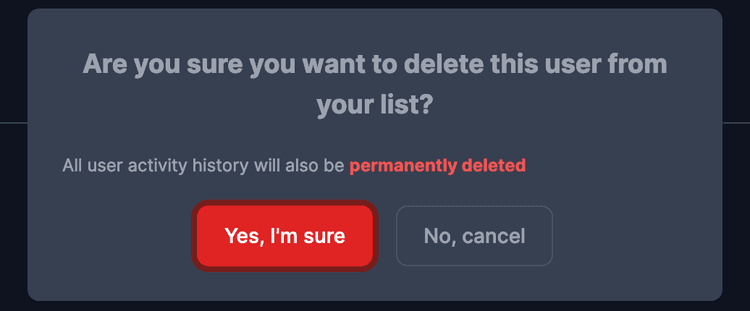 Image: Remove Slack User confirmation modal
Please remember that this data will no longer be available and we will not be able to restore it.
List of required permissions:
- - users:read, View people in a workspace
A service to monitor your team's work in real time
Copyright © 2026 - All rights reserved
Manifesto Labs Prosta Spółka Akcyjna
KRS: 0001206571 NIP: 7831942116 REGON: 543299889
Pl. Wiosny Ludow 2, 61-831 Poznan, Polska