- 1. Slack
- 2. Gitlab
- 3. Github
- 4. Bitbucket
First, create a unique Webhook to integrate with workSonar. To do this, open the repository you want to monitor
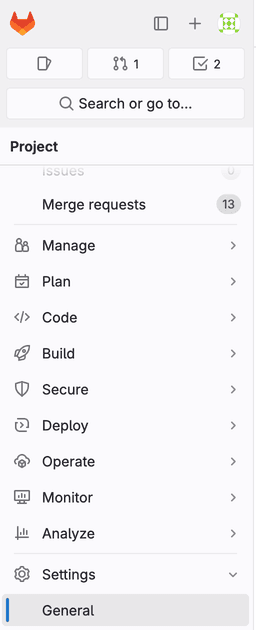 Image: Gitlab Settings
Select Repository Settings then go to the Webhooks tab in the settings.
To create a new Webhook that will notify workSonar about employee activity, click the Add Webhook button on the Webhooks tab in the Settings.
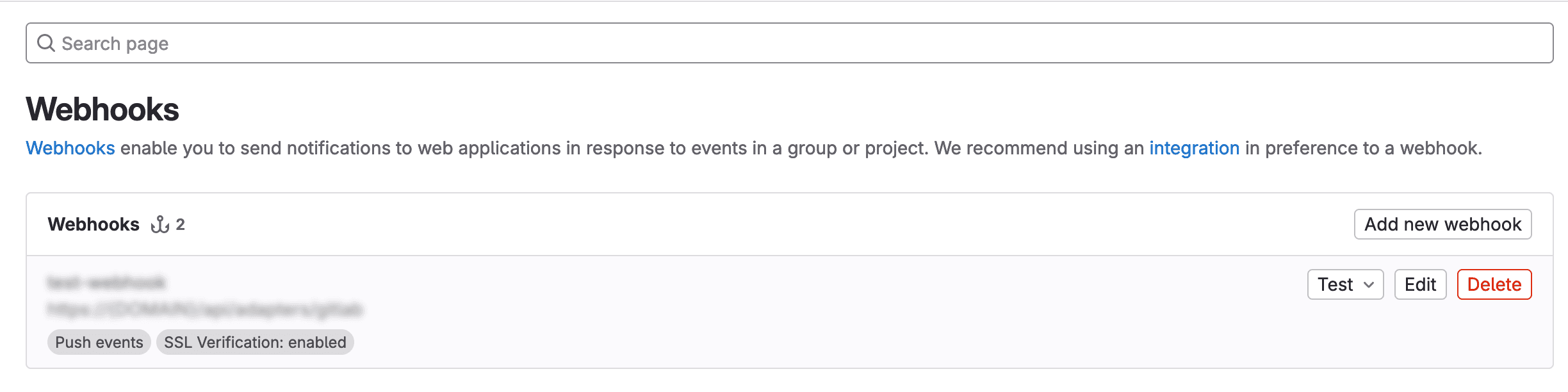 Image: Gitlab Webhook Settings
On the form, fill in the parameters for the new Webhook. The title is used to identify the Webhook, and we suggest naming it workSonar to make it clear where the data is being sent.
To collect user activity from the repository, you need to enter the URL where the data will be transmitted.
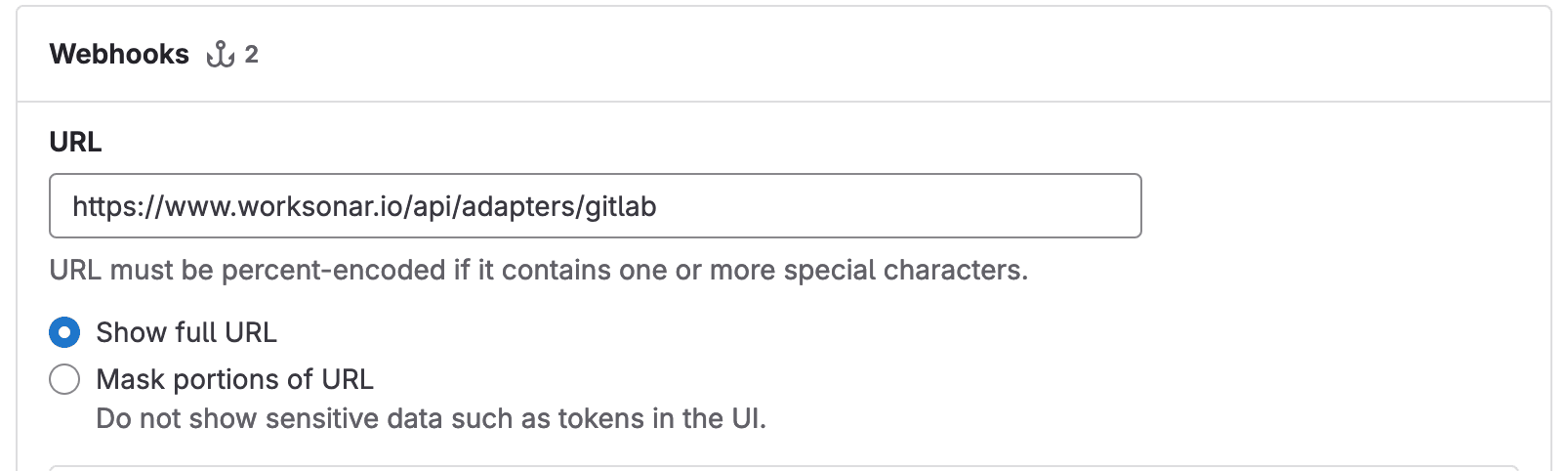 Image: Gitlab Url Form
An important parameter is the Secret
Each repository should have one Webhook and oneSecret and may have unlimited integrated user.
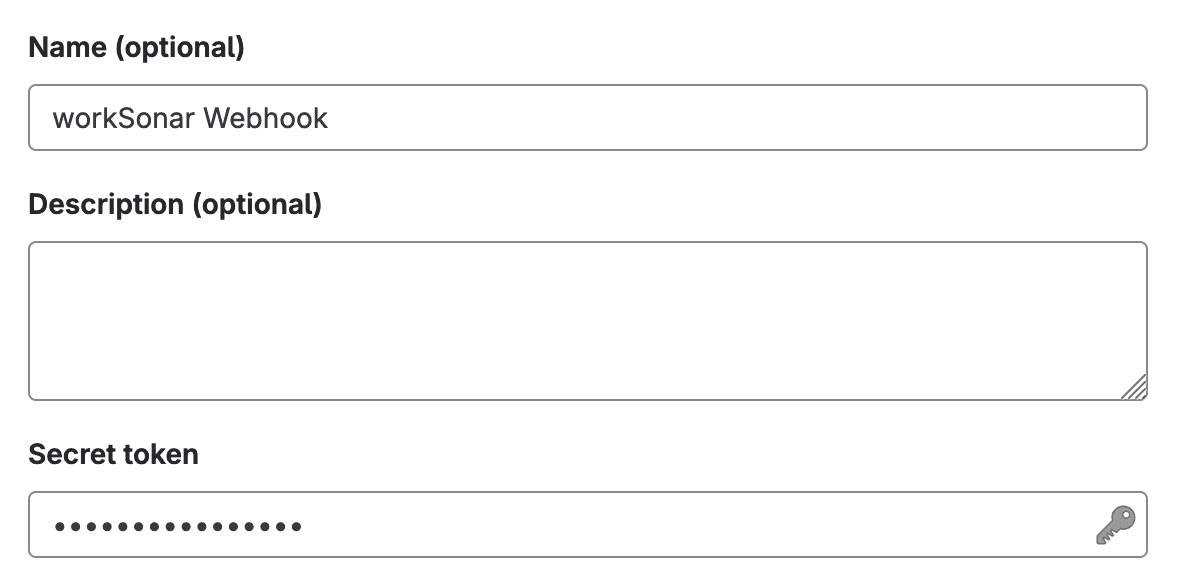 Image: Gitlab Secret Form
In the next Triggers section, select Push events as the only option.
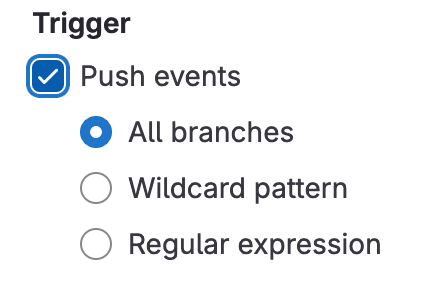 Image: Gitlab Triggers Section
Please make sure that SSL verification is activated.
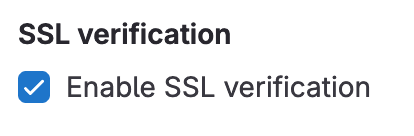 Image: Gitlab SSL Section
You are now ready to save the form by clicking the Save Changes button and then navigate to the /integrations page on the workSonar portal to start adding users for activity monitoring.
After successfully integrating the Gitlab Webhook, you can proceed to add users for monitoring.
To add a new user, go to the Gitlab section on /integrations tab
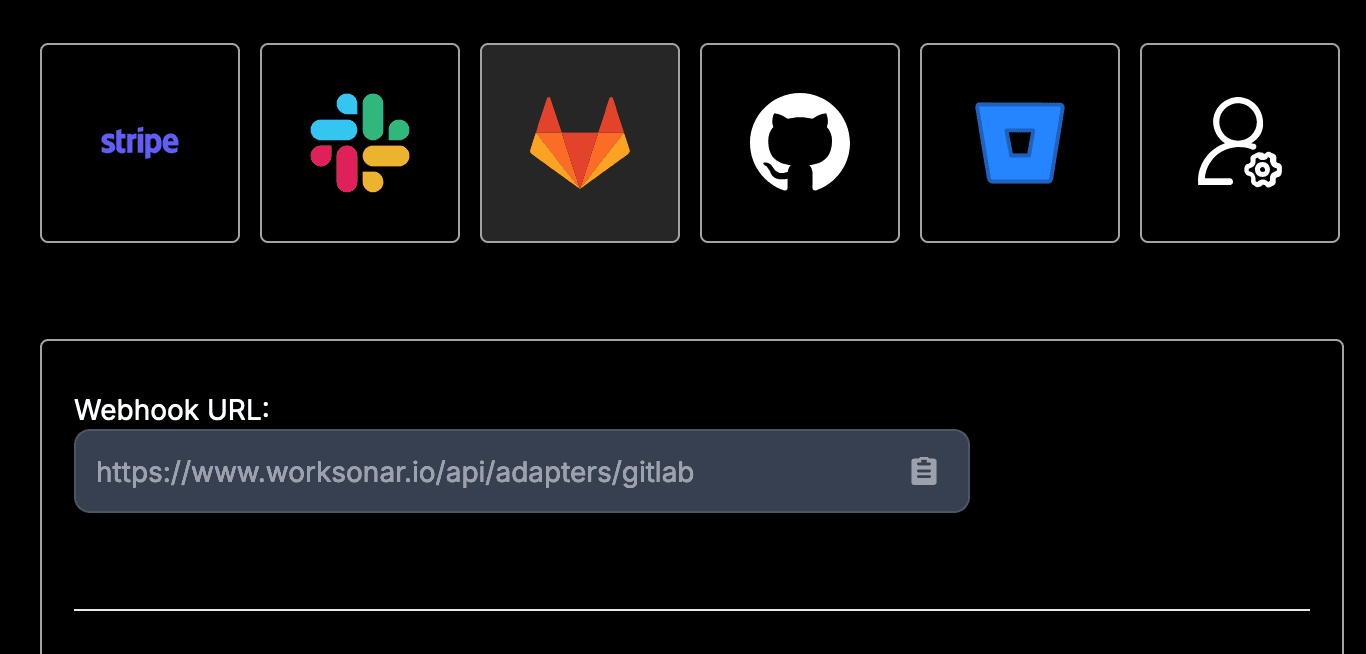 Image: Gitlab Integration Tab
First, select a user from the list of available Slack users to whom you want to assign the Gitlab repository.
 Image: Select Slack User
To fill in the Gitlab Project Id, go to your repository page and, in the upper right corner, click More button is marked with three vertical dots. Then, from the dropdown menu, select Copy project ID: ****
This should automatically copy your Project ID to the clipboard.
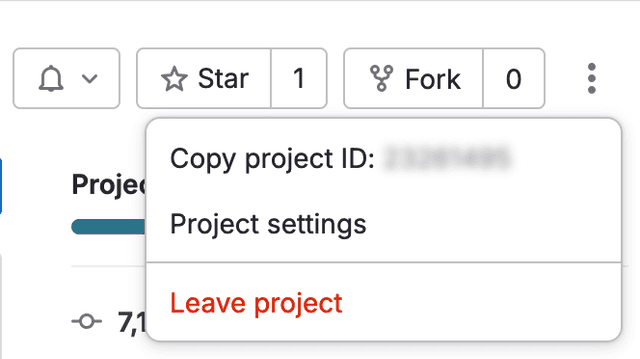 Image: Gitlab Project ID Value
Then paste the value into the Gitlab Project Id text field.
 Image: Gitlab Project ID Input
To obtain the Gitlab User Id, go to your Gitlab project, then select again Manage tab from the menu and navigate to the Members page
In the Members table, find the user you want to assign to the selected Slack user on the workSonar page.
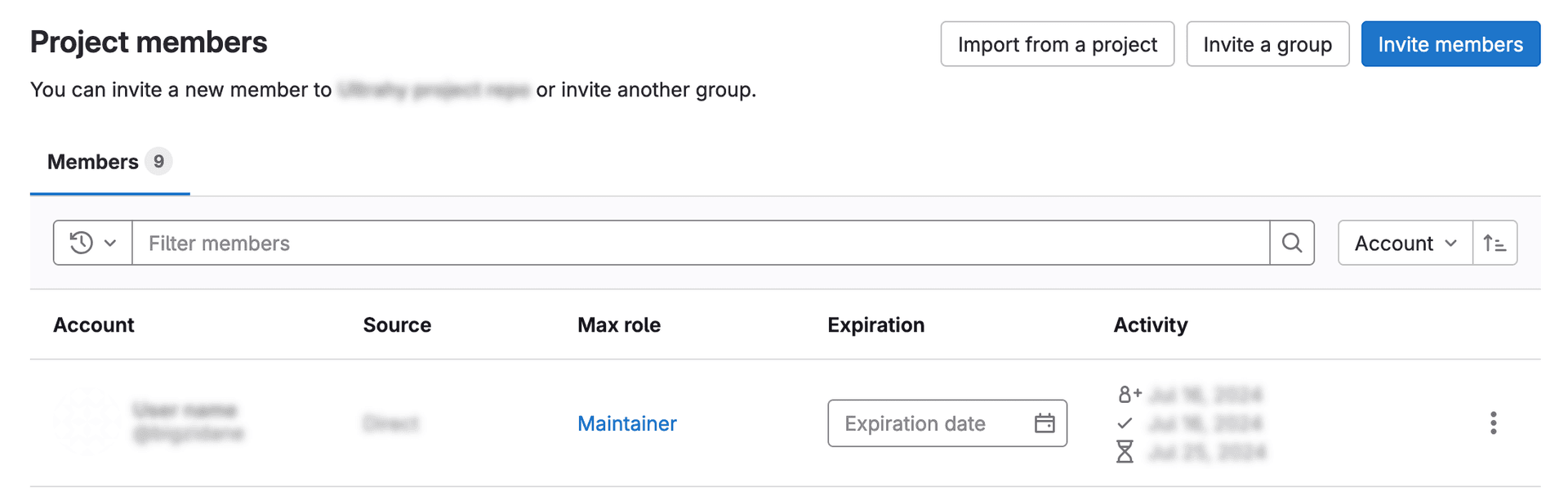 Image: Gitlab User Management Page
Go to the user's page by clicking on their entry in the user table and, in the upper right corner, click More button is marked with three vertical dots.
Then, from the dropdown menu, select Copy User ID: ****
This should automatically copy your User ID to the clipboard.
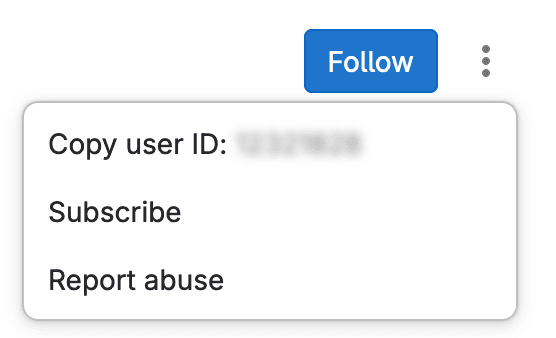 Image: Gitlab User Id Value
Paste the copied value into the Gitlab User Id field on the workSonar form.
 Image: Gitlab User Id InputImage: Gitlab Webhook secret form
After pressing the Add button, your configuration should appear in the table of integrated repositories below.
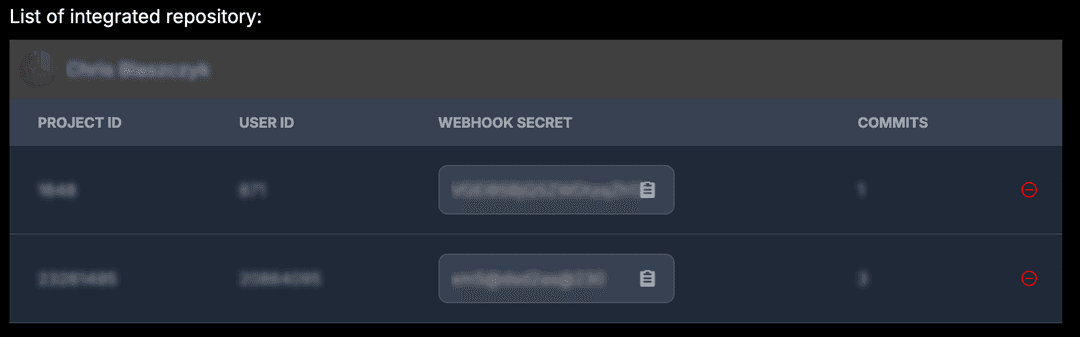 Image: Gitlab User Integrated Success
From now on, when the user sends monitored events, a pulsing identifier indicating the event will appear next to their activity on the /dashboard tab.
Clicking on the identifier will open a modal with a list of activities within the specified time frame.
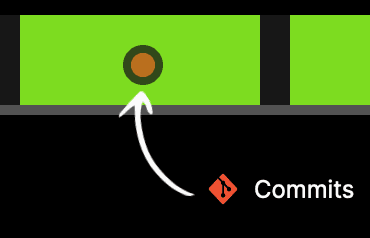 Image: Commit Event Identifier
To remove a repository assigned to a user, go to the /integrations page and select the Gitlab tab.
Choose the user from the selector and scroll down to review the assigned repositories.
Image: Select Slack User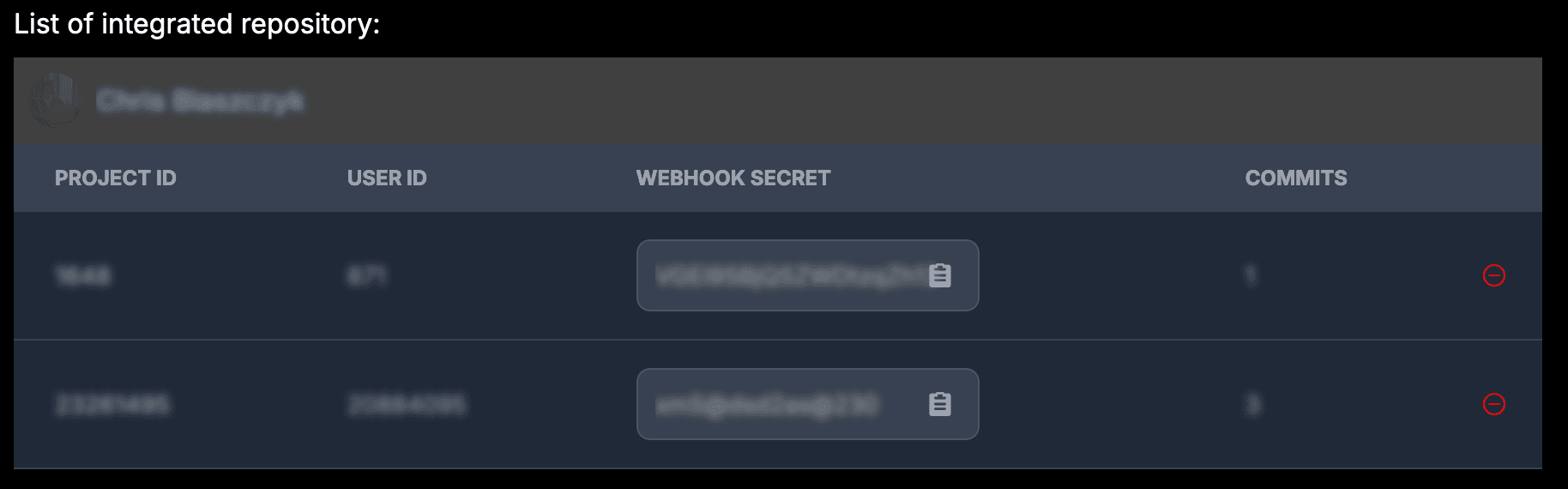 Image: Gitlab User Integrations
Click the red delete button next to the desired repository.
A confirmation modal will appear, informing you that the data will be permanently deleted from the database.
To remove a full integration, the best method is to delete each Gitlab repository assigned to each user. However, this isn't necessary.
Simply go to your repository and delete the previously added Webhook.
Image: Gitlab Webhooks ListA service to monitor your team's work in real time
Copyright © 2026 - All rights reserved
Manifesto Labs Prosta Spółka Akcyjna
KRS: 0001206571 NIP: 7831942116 REGON: 543299889
Pl. Wiosny Ludow 2, 61-831 Poznan, Polska